
You bought construction forms software. You rebuilt the FLHA, the equipment inspection and the daily timesheet in it. Six months later the foreman still texts photos of a paper sheet, the office still retypes hours, and when a client disputes an extra you still cannot find the signed ticket.
The software was not the problem. The forms were.
Almost every failed rollout we see makes the same mistake: somebody took a paper form and recreated it, line for line, in a digital form builder. That produces a PDF you can email. It does not produce data you can report on, a workflow that routes itself, or hours that land in payroll. Those are three different things, and only the last two are worth paying for.
This article is about how to design the forms, not which vendor to buy. The principles apply whether you are evaluating construction forms software or trying to rescue a rollout you already paid for.
The paper trap
Here is the single most expensive habit in digital forms: reproducing a blank line.
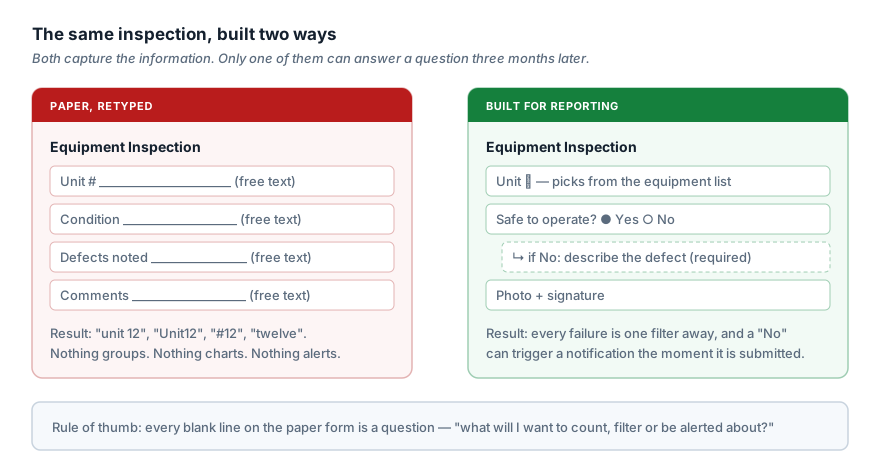
On paper, "Unit # ______" is fine. A human reads it. In a digital form, that blank line is now a text field, and six months of submissions contain unit 12, Unit12, #12, 12 (spare) and twelve. You cannot count them. You cannot filter them. You cannot build a report that says "this excavator failed inspection four times this quarter", which was the entire reason you went digital.
The fix is a question you ask of every single blank line on the old form:
What will I want to count, filter, or be alerted about?
If the answer is "nothing" — leave it as free text. Genuinely. Not every field needs structure, and over-structuring is its own failure, which we will come to. But if the answer is anything at all, that field needs to be a dropdown, a selection from an existing list, a yes/no, or a number. Free text is where reporting goes to die.
The second habit worth breaking: a digital form does not have to look like the paper one. Crews fill these out on a phone, one-handed, in gloves, in the rain. A layout optimised for an 8.5×11 clipboard is actively hostile on a 6-inch screen. Let the paper version go.
The four decisions every form makes
Good forms software separates form building into distinct stages, and it is worth understanding why — because teams routinely do two of the four and wonder why the result underperforms.
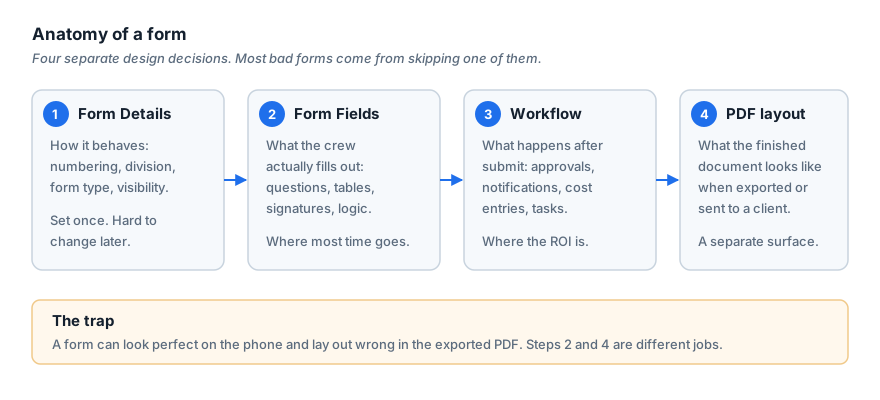
1. How the form behaves. Its type, its numbering, which division or business unit owns it, who can see it. This is boring configuration and it is also the part that is painful to change later, once you have three hundred submissions with the wrong numbering scheme.
2. What gets captured. The fields. This is where teams spend ninety percent of their time, and it is genuinely the craft of the thing.
3. What happens after submit. Approvals, notifications, records created, costs posted. This is where the return on investment actually lives, and it is the stage most often skipped.
4. What the finished document looks like. The exported PDF that goes to a client, an insurer, or into the project file.
That last one deserves a warning. A form can look perfect on the phone and lay out wrong in the export. Long text answers push fields down the page; tables spill; a signature ends up orphaned on page three. The on-screen form and the exported document are two different design surfaces, and the only way to know is to submit a realistic test entry — with a genuinely long comment in it — and look at the PDF before you roll out to eighty people. Do that once and you will never skip it again.
Field design rules that survive contact with the field
Use yes/no with a conditional follow-up, not a comment box. "Is the equipment safe to operate?" as Yes/No, and if No, a description field appears and is required. You now get a clean pass/fail you can report on and the detail you need when it fails. A single "Notes" box gives you neither. This one pattern probably accounts for more usable safety data than anything else on this list.
Know which way your conditional logic runs. In most form builders, conditional logic can only evaluate questions that come earlier in the form. If you find yourself wanting to show question 3 based on the answer to question 9, the answer is not a cleverer rule — it is reordering the form. Plan the sequence before you build.
Pull from lists you already maintain. If the software knows your equipment, your cost codes, your materials and your people, the field should select from those, not re-type them. This is the difference between a forms app and forms software connected to your operations. It is also the single biggest driver of data quality, because a crew member physically cannot misspell a dropdown.
Watch for fields that depend on other fields. A common and maddening one: a cost code selector that stays empty because no project has been chosen yet. The cost code list is scoped to the project, so the form needs a project field before it, or the project hard-coded in the form's preload settings. Crews report this as "the dropdown is broken". It is not broken — the form is missing a prerequisite.
Resist the giant table. Teams reproduce a paper grid as a custom table with fourteen columns, because that is what the paper had. On a phone this is miserable. Ask whether three yes/no fields would carry the same information. Sometimes the table genuinely is right — material lists, time entries, equipment hours — but reach for it second, not first.
Keep required fields honest. Every field marked required is a field that can block a submission at 6pm in the rain with no signal. Require what you will actually chase people for. Make the rest optional. A form nobody can submit produces no data at all, which is worse than imperfect data.
Decide what the form collects automatically. Who submitted, when, from where. Most platforms capture submitter and timestamp automatically and do not let you turn that off — which is usually what you want for an audit trail, but you should know it is happening before you promise a subcontractor their submissions are anonymous.
The part that actually pays: what happens after submit
If your construction forms software is only producing PDFs, you have bought an expensive clipboard. The value is in what the submission sets in motion.
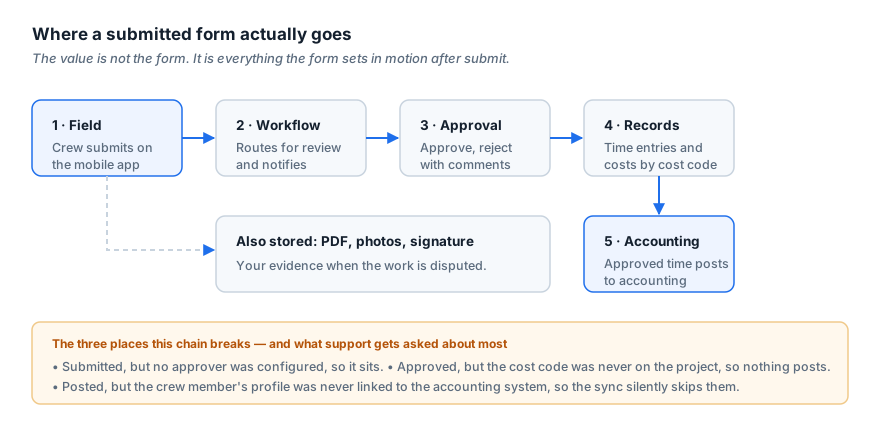
A well-configured form can route itself for approval, notify the right person, create records against the correct cost code, generate the PDF, file it in the project, and push approved hours toward accounting — without anyone retyping anything. That chain is the whole business case.
It is also where things quietly break. Three failure patterns come up again and again in our own support queue:
Submitted, but nothing happened. The form went in and sits there, because no approver was configured for that project and nobody noticed the default. The crew believe they have submitted their hours. The office cannot see them. Everyone is right, and payroll is late.
The cost code was never on the project. Job costing depends on the cost code existing on the project first. Depending on the system, this either blocks the submission outright or lets it through with nowhere for the cost to land — and a company-wide cost code list does not mean every code is available on every job. This catches people constantly.
Posted, but the sync skipped them. The accounting integration ran and silently ignored one crew member, because their profile was never linked to the matching record in the accounting system. Unlinked profiles do not sync, and they usually do not shout about it either.
None of these are exotic. All three are configuration, not software defects. And all three are findable in ten minutes if you know to look — which is why the rollout checklist below matters more than the feature comparison.
What to actually ask when evaluating construction forms software
Feature lists all look the same. These questions do not.
- Can the form pull from my existing data? Equipment, cost codes, materials, people, projects. If every list has to be retyped into the form builder and maintained separately, you have bought a forms app, not forms software.
- What can the form do after submission? Ask for a live demo of one form that creates a record somewhere else — a time entry, a cost, a task. Not a form that emails a PDF.
- Does a submitted form become time and cost, or just a document? This is the question that separates the categories. Get a straight answer.
- Show me the exported PDF of a form with a very long answer in it. Watch what happens to the layout. Vendors demo short answers.
- What happens with no signal? Jobsites have bad connectivity. Ask precisely what the app does when a crew member submits from a basement — and what the crew member sees.
- Who can edit a form after submission, and does editing re-run the workflow? Often it does not. If someone corrects hours after approval, you need to know whether anything downstream updates.
- Which accounting systems does it connect to — specifically, and in which direction? "Integrates with QuickBooks" is not an answer. QuickBooks Online and QuickBooks Desktop are different products. One-way and two-way are different capabilities.
- Is the feature you were just shown included, or an add-on? Ask this about every single thing in the demo that impressed you. Ask it in writing.
A rollout sequence that works
Most rollouts fail on sequencing, not software.
Start with one form, not forty. Pick the one that hurts most — usually the daily timesheet or the FLHA — and get it genuinely right before touching another.
Build it, then fill it out yourself on a phone, outside. Not at your desk. The number of design problems this surfaces in ten minutes is remarkable.
Submit a realistic test entry and inspect the exported PDF. Long comment, multiple photos, a full table. This is the step everyone skips.
Run the whole chain once with real people. One crew member submits, the real approver approves, and you verify the hours arrived where they were supposed to arrive. Do not roll out to the company until you have watched one submission travel end to end.
Then expand. And when you build form number two, resist copying form one wholesale — the same paper trap applies to your own digital forms.
Where Ontraccr fits
Ontraccr forms combine structured data capture, workflow automation and PDF output, and form workflows can connect submissions to other parts of the platform. A few things that are true and worth knowing:
Forms are built in four steps — Form Details, Form Fields, Workflow, and a PDF Designer that controls the exported document. Documented field types include Yes/No, Choose One or More, Text Input, Attachment, Table, Calculation, Date/Time, Date/Time Range, Attribute, Multi-Signature, Static Text, Static Attachment, GPS Location, Weather and Dynamic Attribute. Table fields can draw on Materials, Labor Hours and Time Entry data. Worth being precise here, because it is exactly where rollouts go wrong: a Time Entry table captures the hours, but those entries are added to users' time cards only when the workflow also includes the Create Time Entries step. The table and the workflow step are both required for form-based time tracking. Miss the second and you get the "submitted but never landed" problem described above.
Workflow blocks can assign users, route approvals, force an edit, send email, notify in app, export a PDF, trigger another form, create a board card, create a project profile through the Create Profile workflow step, and dispatch work.
Approved time cards sync to Quickbooks Online — one-way, Ontraccr to QBO, and only for profiles that have been linked. Ontraccr documentation also covers integrations with Sage 100 Contractor, Stripe, Gmail, Explorer Eclipse ERP, Zapier and DocuSign.
And some limits worth knowing before you get attached to an idea:
- A form is assigned to one division — you cannot assign it to several at once.
- External Forms let users outside your Ontraccr account complete forms through a public URL. They can also trigger internal form workflows, which makes an external submission a workable starting point for an internal process. External Forms are available as an add-on subscription.
- Depending on the form's settings, a submitted form may allow editing. When editing one, users can either save the change or re-submit the form rather than simply saving the edit — worth deciding which behaviour you want before rollout.
- The Gmail Add-On is a separate integration that connects Gmail inboxes to Ontraccr and lets users link email threads to board cards. It is available as an add-on subscription.
- Repeatable sections disable custom PDF templates, so a form using section duplication uses the standard PDF template instead. Separately, when a section is set to Default Collapsed, required fields inside it are overridden to optional.
- Project forms are tied to one project and exist for workflows that need to be unique to it. A global form template can be imported into a project form, then its fields, workflow and PDF design modified and saved for that project.
- Some capabilities require add-on subscriptions. The documentation explicitly identifies External Forms and the Gmail Add-On as add-ons. The Sage 100 Contractor integration also requires an Ontraccr-assisted connector install and an integration fee. Confirm current packaging for anything else with your Ontraccr account representative. Ask which of these you are actually buying — which is the same advice as question 8 above, and it applies to us too.
If that list reads as a strange thing to publish, it is the point. Every one of those is something a contractor would otherwise discover in week three of a rollout, and knowing them up front is what makes the first form the right one.
The short version
Construction forms software does not fail because the software is bad. It fails because a paper form was retyped into it and nobody configured what happens after submit.
Structure the fields so you can report on them. Design the export as its own surface. Build the workflow, not just the form. Test one submission end to end with real people before you roll out to everyone.
Do that with one form and the second one is a great deal easier — you will be reusing decisions rather than rediscovering them. It still takes real thought. Anyone who tells you form design is a five-minute job has not had to report on a year of submissions.